![Adriel-logo_navy.png]](https://academy.adriel.com/hs-fs/hubfs/Adriel-logo_navy.png?height=27&name=Adriel-logo_navy.png)
Summary
Marketing Data: Definition
The Adriel platform has been natively designed to easily aggregate what is often called "Marketing" or "Advertising" data:
Platforms such as Google Ads, Meta Ads, etc. usually have a common structure, represented by breakdowns such as:
- Ad Account
- Campaign
- Ad Set
- Ad
In terms of metrics, similar fields can also be commonly found across different platforms, such as:
- Impressions
- Link Clicks
- CTR
- CPC
In Adriel, these breakdowns and metrics have been implemented as pre-built native fields you can directly use in the platform to visualize aggregated data:
e.g., If you use both Google Ads and Meta Ads data sources in a widget, and use Campaign as a breakdown and Impressions as a metric, data from both channels will be returned, as we already mapped these fields to the corresponding ones from each platform.
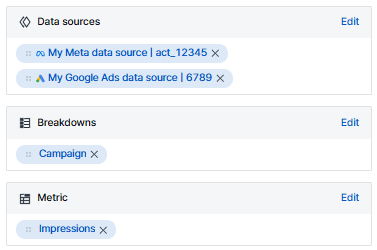
These channels and data sources are therefore usually called "Marketing" or "Advertising" ones both due to the nature of their data and the fact that we natively map some of their fields to our pre-built ones.
Identifying Marketing Data Sources
The most straightforward way to check the nature of your data sources is to directly use it in widgets we specifically designed to contain marketing data, such as Ads Tables.
After creating this type of widget and checking the Data sources section, some of the data sources will appear as selectable while others will be greyed out with the below message displayed on hover.
Please complete "Data Integration" settings to use this source.
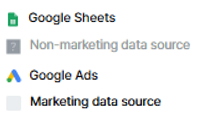
There are two cases when data sources might not be natively considered as marketing ones in our platform:
- Flexible connectors (e.g., Google Sheets, CSV, Database connectors, etc.): In these cases, the schema will often depend on each specific data source, meaning that our platform cannot be aware of the fields to potentially map to our pre-built marketing fields beforehand.
- Connectors with marketing data, but not fitting our pre-built marketing breakdowns and architecture: e.g., Adform is a DSP returning metrics such as Impressions or Link Clicks, and could conceptually belong to the "Marketing" category. However, DSP often have a breakdown structure that is different from our basic Ad Account/Campaign/Ad Set/Ad one, making it not possible to consider this channel as a marketing one in our platform. (in this example, "Order" and "Line Item" breakdowns are usually used, and not "Ad Set" or "Ad", preventing us from performing an accurate mapping to our pre-built fields).
Data Integration
This section can be reached by going to your Data Sources page, then clicking on ⋮ > Settings on the right for each data source you would like to update.
The Data Integration tab is then located in the top bar.
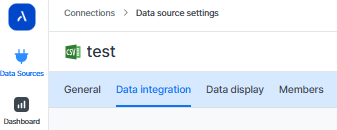
a/ Data Mapping

In the case where your data source isn't natively considered as a marketing one because it belongs to one of the categories described above, the Data Mapping feature allows you to turn your non-marketing data source into a marketing one.
e.g., If you connected a CSV file containing columns such as "Imported_Campaigns" and "Imported_Impressions", you can then map these two fields to pre-built native Adriel breakdowns and metrics.
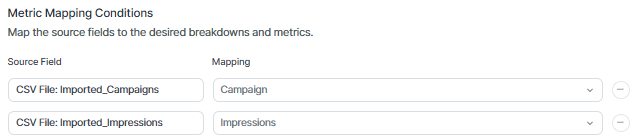
In this case, the CSV File data source that previously was a non-marketing data source is now considered as a marketing one and can be seamlessly used in marketing widgets such as Ads Tables.
These mapped data sources to our marketing architecture will then no longer be greyed out in the data source selection panel for marketing widgets, and will have a Mapped tag added to them.
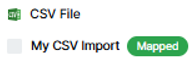
Turning your data source into a marketing-type one not only improves the seamlessness of use in widgets, but also impacts a significant number of features that are originally designed for marketing data sources.
e.g., In dashboard/widgets filters, marketing-type filtering conditions can be specified (such as Campaign Contains "ABC"), and in this case, you wouldn't need to set up a second condition on Imported_Campaigns Contains "ABC", but a single Campaign Contains "ABC" one.
e.g., Custom breakdowns via the "Auto by Segment" feature allow you to set up rules for our system to automatically extract labels from different marketing breakdowns, such as Campaign, Ad Set, and Ad. However, this only works for these specific marketing breakdowns, and updating your data mapping will ensure the extraction also works for your concerned mapped data sources.
e.g., Some data blend use cases will require you to turn your data sources into marketing ones if you wish to blend them with other non-marketing data sources (e.g., Blending Adform with Google Sheets data based on a LEFT JOIN rule). For more information, please read the section below.
b/ Data Blending

Data Blending allows you to join marketing data sources with non-marketing data sources and visualize matched data in your widgets:
e.g., You can blend marketing data coming from channels such as Google Ads or Meta Ads with non-marketing data such as sales data coming from a Google Sheet. In that example, the goal could be to visualize a table containing columns such as Ad Spend, Link Clicks coming from marketing data sources, along with Leads or Sales columns, for specific campaigns.
Two types of joins are possible through the Data Blending feature:
- LEFT JOIN: Based on the fact that we consider your marketing data sources as the left part of the join, and your non-marketing data sources as the right part of the join, the result of the blend will return all rows for your marketing data sources and matching non-marketing data against them based on the join keys defined.
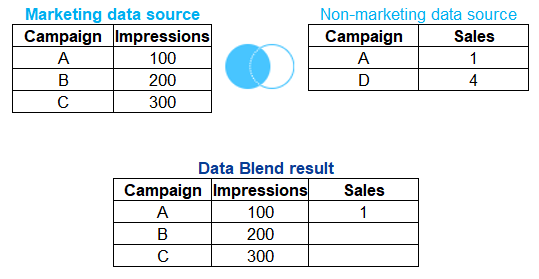
- FULL JOIN: The result of the blend will return all data coming from both marketing and non-marketing data sources, including both rows that match based on the join keys defined and rows that don't match.
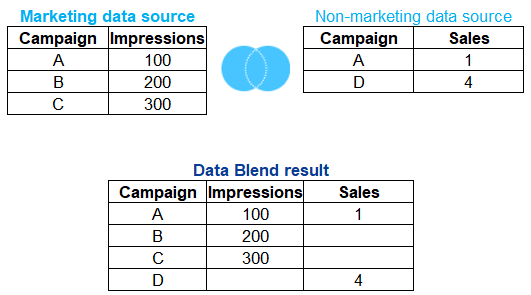
You can typically implement these kinds of use cases by updating the data blend settings for your non-marketing data sources to make sure that they can be well blended with marketing data sources when both are used in the same widget. (e.g., Ads Table).
e.g., In an Ads Table, which is a marketing-type of widget, non-marketing data sources without updated data blend settings cannot be used because join keys are not defined. The data sources will be greyed out and you will be asked to first update your Data Integration settings (specifically Data Blending in this case).
Please complete "Data Integration" settings to use this source.
In the Data Blend settings, 4 sections need to be updated:
- Join type (LEFT JOIN or FULL JOIN)
- Join conditions (e.g., Campaign <> Imported_Campaigns)
- Total row aggregation
- Additional mapping conditions (in this section, our pre-built Adriel breakdowns and metrics can also be mapped to your non-marketing data source fields)
For more information, please read the following articles:
Once your data blend settings are updated, your non-marketing data sources will then no longer be greyed out in the data source selection panel for marketing widgets, and will have a Blended tag added to them.
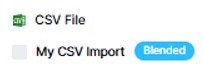
For any cases where your non-marketing data sources need to be considered as marketing data sources by our platform, we highly recommend using the Data Mapping feature instead of Data Blending with FULL JOIN.
The Data Mapping feature has been specifically designed to address these use cases, and the FULL JOIN option for Data Blending is planned to be sunset in the near future, after assessing high adoption of Data Mapping among our platform users.