![Adriel-logo_navy.png]](https://academy.adriel.com/hs-fs/hubfs/Adriel-logo_navy.png?height=27&name=Adriel-logo_navy.png)
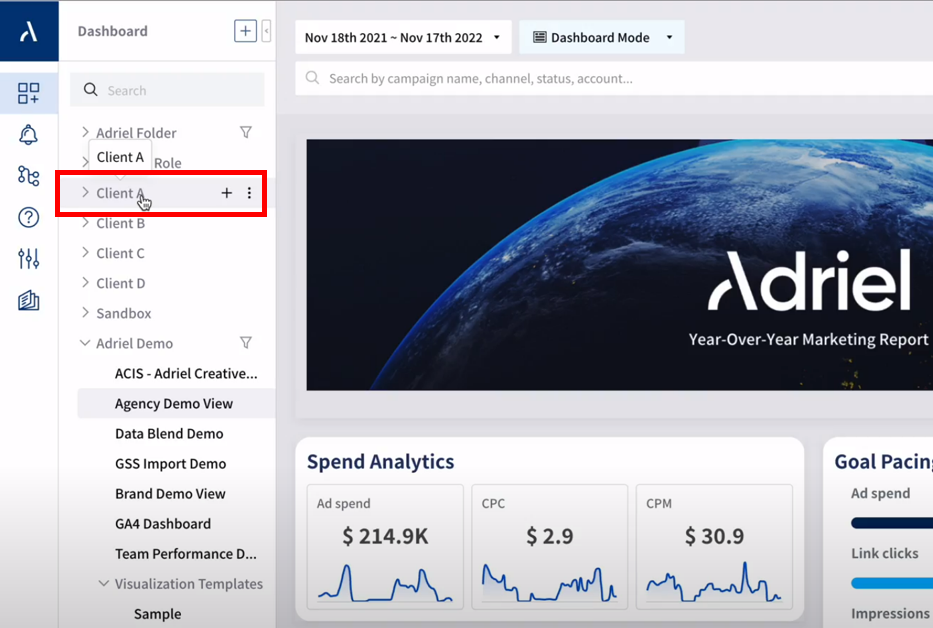
- Create the folder you want. In this example, we used the folder labeled “Client A”.
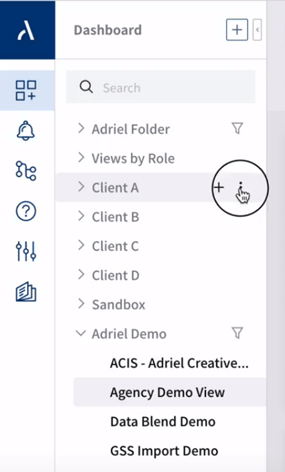
- Select the 3 dots on the side of that folder. Then, click on settings.
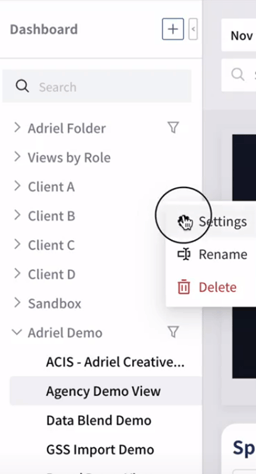
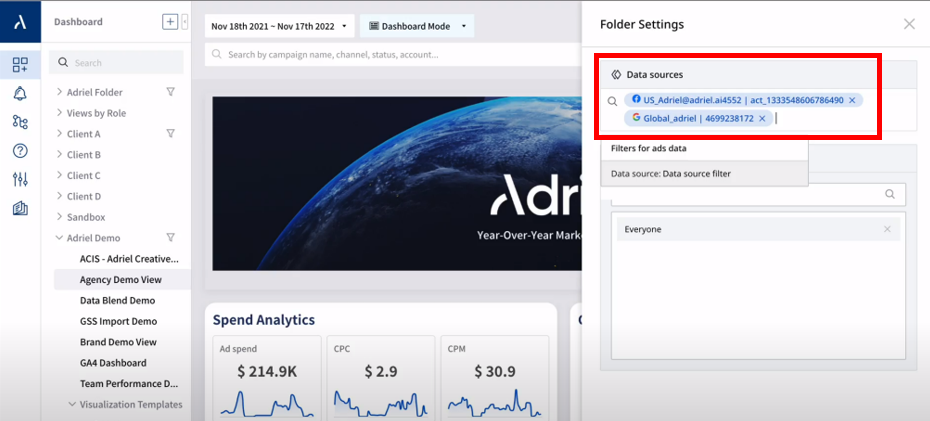
- In the folder settings, you can apply the data sources that you would like to be visible for your folder.
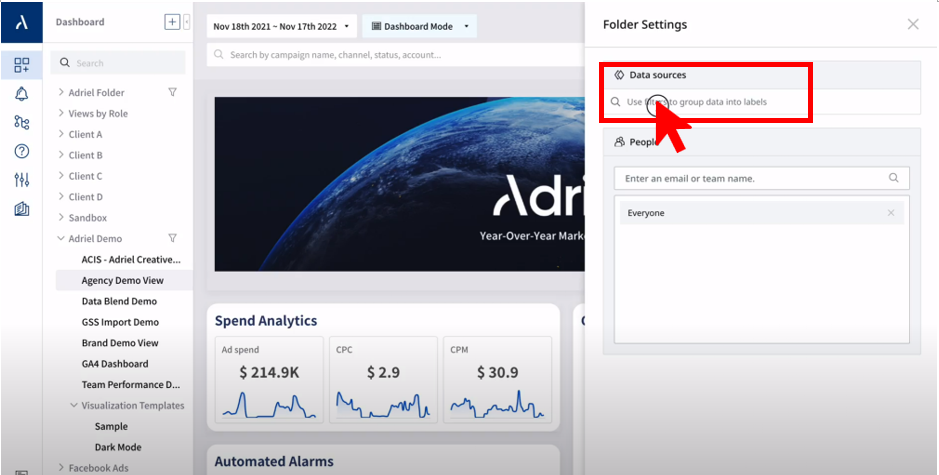
- Click on “Use filter to group data into labels”, then on “Data source: Data source filter”.
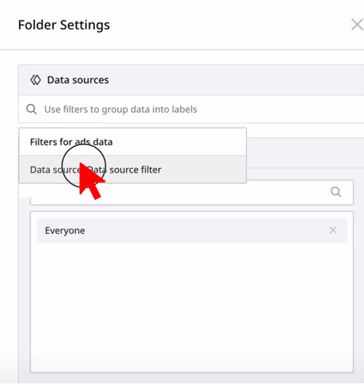
For our example, we will use these two data sources:

- Great! You’re finished. Now, the only data that will pull into those views are the selected data sources you selected.