![Adriel-logo_navy.png]](https://academy.adriel.com/hs-fs/hubfs/Adriel-logo_navy.png?height=27&name=Adriel-logo_navy.png)
Lastly modified on: Tue, 24th Mar, 2026 at 05:06 PM
Prerequisite
- Amazon Vendor Central Account
Instructions
Step 1: Getting Client ID, Client Secret, and Refresh Token
If you already have a client ID, secret, and refresh token, you can use the previously issued one.
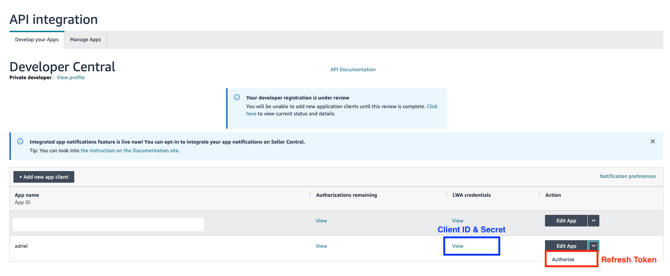
- Go to Amazon Vendor Central Developer Console
- Log in to your Amazon account.
- Navigate to [API integration] > [Develop your Apps] > [LWA credentials] > Click "View"
- You can find LWA credentials. Copy Client identifier and Client secret.
- Client identifier = Client ID
- Client secret = Client Secret
- You can find LWA credentials. Copy Client identifier and Client secret.
- Now, navigate to [API integration] > [Develop your Apps] > [Edit App] > Click "Authorize" to fetch refresh token.
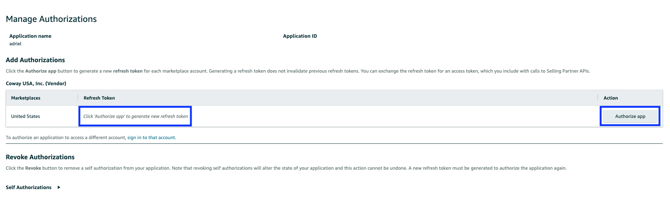
- Click "Authorize app" and copy the Refresh token shown on this page.
- Note that the Refresh token can be viewable when the app is made and "Authorized" for the first time or when the app is revoked. If revoked, the previous token becomes invalidated.
Step 2: Connecting Amazon Vendor Central to Adriel
- Move to Adriel's Connections page.
- Type “Amazon Vendor Central” into the search bar.
- Fill in the "Refresh Token", "Client ID", and "Client Secret" found at step 1.
- Fill in the “Report Name”, "Report Type", and "Marketplace ID(s)"
- Report Name: Any readable/identifiable name is sufficient. This is to distinguish each data source.
- Report Type: Select the type from the dropdown list. At the initial stage, only the Vendor Sales Report will be supported.
- Marketplace ID(s): Select the ID(s) from the dropdown list.
- Click “Submit” to proceed.
It can take up to one working day for your data to arrive.