![Adriel-logo_navy.png]](https://academy.adriel.com/hs-fs/hubfs/Adriel-logo_navy.png?height=27&name=Adriel-logo_navy.png)
Lastly modified on: Wed, 20th June, 2024 at 03:18 PM
Prerequisites
- Amplitude chart
Instructions
Step 1: Creating New chart on Amplitude
- Login to your Amplitude dashboard.
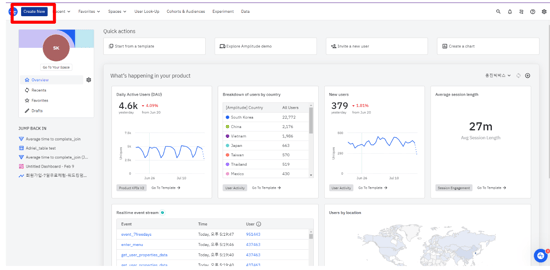
- Click "Create New" at the upper left of the screen.
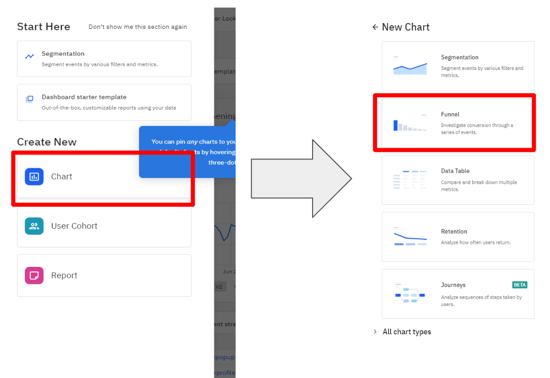
- Click Create New "Chart" and choose "Funnel."
- Click "+Add Event" at the left menu to add events that you want to see with Funnel chart.
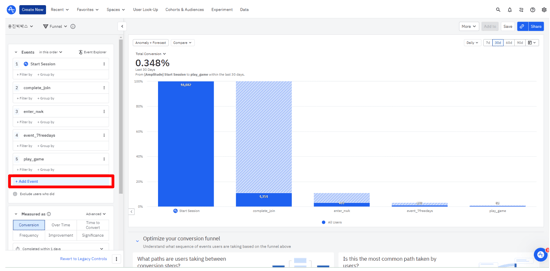
- Check what kind of user you want to segment by\.
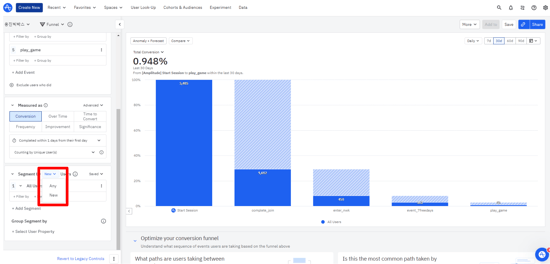
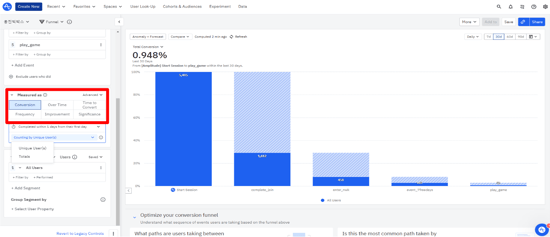
- Choose measurement option of the chart.
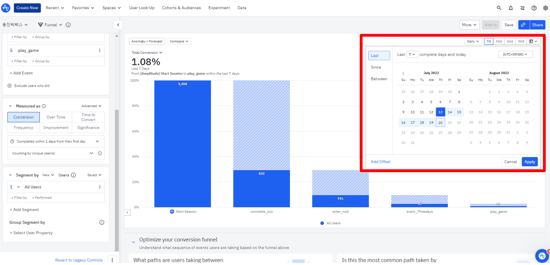
- Set range of data you want to see on the chart.
If you need more information, refer to Amplitude <Interpret your funnel analysis> documentation.
Step 2: Creating Funnel chart on Adriel dashbaord.
- Login to Adriel dashboard.
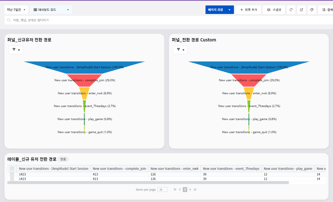
- Click "+Add widget" at the top and choose "Funnel chart".
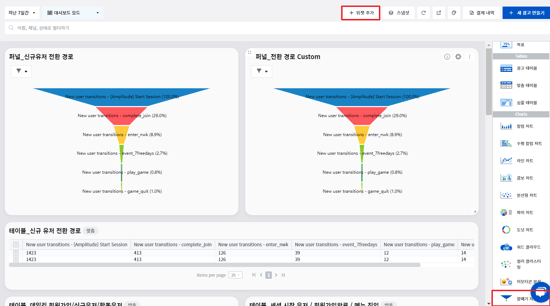
- Choose data metrics same as Amplitude Funnel chart.
- transitions is same with conversion at Amplitude

- Choose same user segment with Amplitude dashboard. New user / Active user(any user)
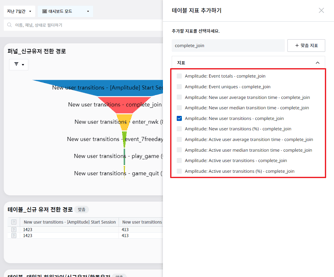

- Choose table widget on the right menu to check data in detail

- Compare with both data whether it’s same or not.