![Adriel-logo_navy.png]](https://academy.adriel.com/hs-fs/hubfs/Adriel-logo_navy.png?height=27&name=Adriel-logo_navy.png)
Lastly modified on: Fri, 21st June, 2024 at 06:14 PM
Summary
Overview
The "Export to Google Sheets" widget option in Adriel generates a URL that you can use in combination with the "IMPORTDATA" function to easily import your data into this external platform.
However, although your data is synced every 4 hours on our end to allow you to get the most recent data every time this URL is accessed, Google Sheets imposes some data freshness limitations.
Please refer to <Learn more about Import functions> for detailed information.
Thus, the few steps below need to be followed to implement a small script that will help you work around these data freshness limitations.
-
Script creation
- In the main top bar, click on the "Apps Script" option within the "Extensions" menu.
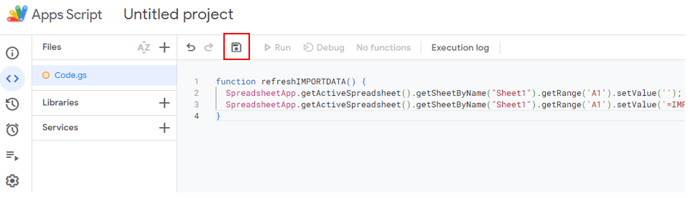
- Replace the entire existing code with the one below:
function refreshIMPORTDATA() {
  SpreadsheetApp.getActiveSpreadsheet().getSheetByName("Sheet1").getRange('A1').setValue('');
  SpreadsheetApp.getActiveSpreadsheet().getSheetByName("Sheet1").getRange('A1').setValue('=IMPORTDATA("https://api.adriel.com/api/widgetExport/auto?widgetId=123&viewkey=abc")');
}
Please replace the following values:
- "Sheet1" needs to be replaced with the name of the destination sheet for your import
- "A1" needs to be replaced with the name of the target cell for your import
- "https://api.adriel.com/api/widgetExport/auto?widgetId=123&viewkey=abc" needs to be replaced with the URL you generated from your widget in Adriel
- Once done, click on the save icon in the top bar:
- Click on "Run" to manually execute the script and import the data in your sheet. This will serve as a first test and help check if the script is working well:

- Go to your sheet and click on the "Allow access" button - your data should then be displayed:

-
Trigger setup
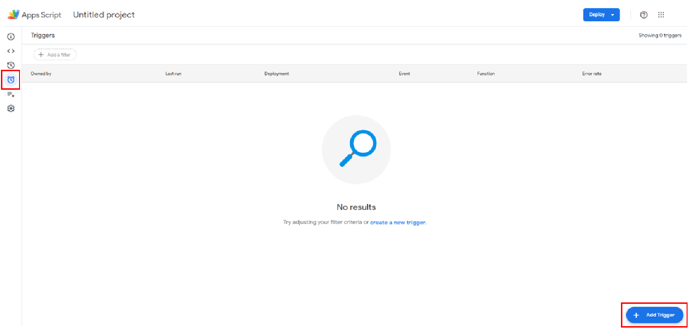
- In the left-hand bar, click on "Triggers" and then on the "Add Trigger" button in the bottom-right corner of your screen.
- Select "Time-driven" as an event source, and check if the hour interval is set to "Every hour".
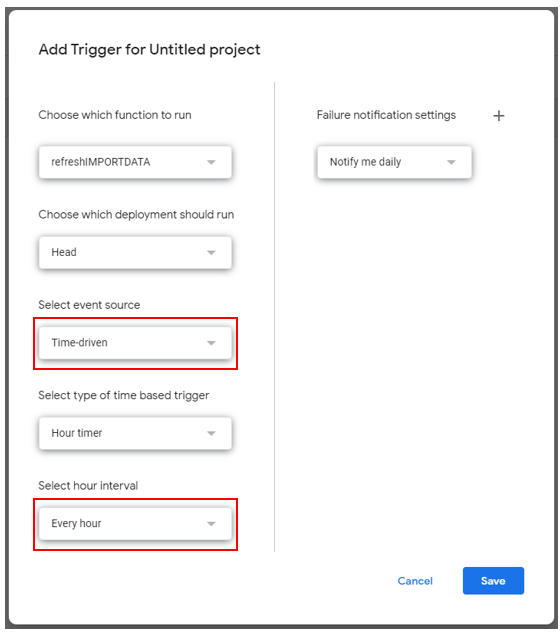
- Click on the "Save" button to complete your setup.